You know that short video increases student engagement,
however you do not have the finances or time to purchase complex video creation
software.Getting a video production
crew on a teacher’s salary is just not possible.How can one take advantage of video in their
online courses?
What if I told you that there is a tool that can easily
create short video clips for your online course, embed the clips, and
automatically generate closed captions? Ensuring that the experience is accessible, the
tool generates transcripts automatically.
How to use Video Note
Video Note can be accessed by using the “Insert Stuff” icon.
When selected you have to option to:
Record live using your web camera or
Upload a premade video.
Remember to keep the video short, or you will lose the
attention of the viewers.
Remember to give the video:
a name,
description,
select the video’s language and
select “Automatically generate captions from
audio”.
Select next to review and insert (or re-record).The video will be in embedding into the web
page. Video Note will even keep your video in your course – so there is no
commercial access or issues with social media!
There are so many uses! Video Note can be used in any editor
in Brightspace and is excellent for giving feedback when grading.Use it in the feedback section so students
will then be able to easily click on the video with one click when viewing
their grades – increasing their likeliness to review the feedback!
Other video editing tools and transcript tools can cost you
thousands of dollars. Video Note cost
nothing – and can be paid in four small payments of $0.
I only want Audio
What if you do not want video, but only want audio, can you
embed that with Video Note?Yes.
Whatever your reason, be it being an international spy or that you just want to
remain faceless, you can use Video Note to upload audio.Simply select the audio only feature or
upload the audio file, and Video Note can create an interactive player that
proves captioning and transcripts.
AI company CEOs are claiming that artificial intelligence
will replace workers (Cutter & Zimmerman, 2025) based on the vast amount of
content quickly created by AI. However, faster does not necessarily entail
better.When one needs brain surgery, it
is probably not wise to go with the surgeon who claims to perform the procedure
faster than anyone else with no attention to the survivability rate.When stakes are high, we value accuracy. Sacrificing
a marginal amount of time becomes an acceptable trade.
Online learning took years of research to confirm its legitimacy,
and in 2009 the Department of Education confirmed that not only were online courses
comparable, but were in some cases better than, traditional courses (Means, et
al., 2009).Once the pandemic
necessitated a move to online instruction, a vast number of academics moving to
online instruction frequently resulted in best practices being ignored in favor
of speed by those new to the online modality (Farrell, 2022).Years later, the effects on online
instruction without proper instructional design is still not determined.
The introduction of AI provided tools has produced more AI
generated text than the combined output of human generated text since the Guttenberg
printing press (Vincent, 2021).This
vast amount of content is hawked as a good thing.However, quality isn’t measured in terabytes.
When writing computer programming code, AI code often contains bugs and
introduces security risks (Perry et al, 2023). Alarmingly, while programmers predicted that
AI tools can reduce their completion time by at least 20%, studies reveal the
tools slowed down completion by 19% (Becker, et al, 2025). This significant
difference illustrates that if one is enamored by a quick an easy tool it could
lead to a sacrifice in quality that will impede the end result. Simply having a
tool that can produce vast amount of content does not vouch for the quality of that
content.
How does this apply to online learning? Over twenty years of
research molded an online design approach that focuses on positive learning experiences
(Wasson & Kirschner, 2020) where courses are designed to be accessible to
all students, follow a Universal Design for Learning approach (Dell 2015), and focusing
on complex learning through engaging designs instead of merely presenting
content (Wasson & Kirschner, 2020). A few features that are expected in
these online designs include:
A focus on the learner
Prototyping designs
Designs that accommodate multiple learning strategies (Rose & Meyer, 2002)
Iterative development incorporating student feedback (Adnan & Rizhaupt, 2018)
Aligning learning outcomes to assessments (Ni She, et al, 2021)
Being able to develop online learning environments that
apply best practices defined by applied research in learning is critical for creating
courses that promote student success.While
AI may be able to quickly produce content, would it be able to create
discussion activities for adult learners that:
Promote active learning
Provide open-ended questions that explore and apply concepts
Encourage learners to apply their real-world experience to the content
Avoid soliciting facts that close off conversations
Apply scaffolds that ensure inclusive learning practices
With the vast growth of the AI industry, faculty access to
AI, and economic issues facing schools, it is quite possible that AI will quickly
provide shoddy content at the cost of the learners.
Case Study: Brightspace LUMI AI
LUMI is an AI tool available through D2L Brightspace that applies only the specific
content instructors provide while promising content privacy. Based on the Anthropic’s Claude architecture,
the tool can generate:
test questions,
discussion questions,
assignment ideas, and
module summaries.
This can be done quickly and relatively easily. Impressively,
users can even set the level of Bloom’s taxonomy for many of the outputs. Being
integrated within Brightspace allows for a common platform for a school to use
that will save money and training time.Its one-press button is also convenient for the faculty.
Will it replace developers and instructional designers?Like the claims of many selling AI tools, they
are exaggerated.When using AI to
develop questions for online discussions, I noticed a disturbing trend.The questions were similar to a new teacher
who has no knowledge of best practices in instructional design.
With each generated output, the discussion questions lacked
instructional design principles for online learning. Presumably developers will
edit the material and make necessary additions or changes.In reality, overworked instructors are not
incentivized to do so.And this is the
crux of the problem with AI.It
encourages the quick and easy solution and contributes to ignoring specialists.
AI slop is quick and easy; however, it does not promote student learning (Weller,
2024).
Below is a LUMI Pro AI training guide:
The Lesson
AI is a tool – not a
solution.If you are going to use AI,
be sure to edit and apply best practices in instructional design for
learning.For example, online
discussion questions should be written with:
Open ended questions
Providing follow-up questions and time for reflection
Linked to authentic life experiences
Encourage sharing references and promoting an academic conversation.
While there is nothing wrong with using AI to help inspire
you when developing courses, you will probably note that the best courses have
inspiring and engaging learning activities that are more than just a vague
question for a standard online forum. To be fair to LUMI, Brightspace has
designed it such that instructors must review/edit the generative results before
they are applied.
The AI Apocalypse - Wow?
Replacing experts with stochastic parrots is probably a
recipe for disaster.The hallmark of good
college is its instruction.AI is a tool
and it is important to not be enamored by its novelty.Instead, learn to work with it and know its
limitation. Be sure to vet all generative
AI material.Be warned:You may be like the programmers who think the
AI tools are increasing their speed, when in actuality the tool has become an albatross.
Since instructional design is a detailed field, it is prudent
to understand best practices in online course development to assist your
assessment of the AI content.Most
teaching and learning centers are filled with instructional designers who are
more than happy to share the knowledge with faculty.While the may dispel the razzle-dazzle of
some AI tools, it will contribute to developing courses that increase student success.
Perry, N, Srivatava, M, Kumar, D, and D, Boneh (2023) Do Users Write
More Insecure Code with AI Assistants?. In Proceedings of the 2023 ACM SIGSAC Conference on Computer and
Communications Security (CCS ’23), November 26–30, 2023, Copenhagen,
Denmark. ACM, New York, NY, USA.
Rose, D. & A. Meyer (2002). Teaching every
student in the digital age: universal design for learning. Alexandria, VA:
Association for Supervision and Curriculum Development.
Most every college online learning department in the US sparsely
staffed given the tasks they is expected of them. While faculty are experts in
their field of study, instructional design is separate field and it cannot be
assumed that all faculty have this training. This knowledge is critical for the
professional development of the faculty and directly affects the accessibility of
online course content as well as adopting best practices in teaching and
learning, such as regularly reviewing online courses quality.This become an added burden for understaffed
department. Nevertheless, these are necessary are for meeting Middle States Accreditation
(Standard III, section 4).
To make this task tractable, a school using a LMS such as
Brightspace, can create a non-termed ‘course’ where faculty can both learn what
it is like to be a student in the system and participate in a self-paced
training to improve the understanding of necessary topics. By creating a communal professional development
space, faculty can autonomous select topics to improve and break down silo’s with
strategic online forums. The shared space can also act as repository of tools
and OER content that faculty can easily access.
In the case of SUNY
Schenectady, a 5 module self-paced course allowed faculty to select between
modules the content they wanted to first focus on. In order to progress, certain requirements were
necessary to advance further in the course.
This allowed modules to provide scaffolded activities. The modules also provided a quantifiable space
that required about the same about of effort to complete while each module
illustrated Universal Design for Learning principles in an attempt to teach by
example.
The true challenge to professional development is getting
faculty to participate in the training.
To do this we had three incentives:
Learning outcomes
for each module included building assets that the faculty could use in their
courses.Often these assets employed
strategies that would increase student engagement and reduce faculty
effort.
Gamified
modules offered badges for completing sections.By design it encouraged or lead learners to
produce more or complete the course
Certificates
– were set up through an automated system (Awards).Faculty would received personalized and dated
certificates for not only completing the courses, but for completing each module.This would allow for learners to use their
work in each module to generate measured evidence (a certificate).These illustrate a quantifiable amount of
work and the learners can share the certificates
with their supervisors as evidence of the professional development in the
annual review. For those without Adobe PDF Pro, a generic certificate can also work,
Automated Enrollment
Using Intelligent Agents in Brightspace, the
system can identify all those with a specific roll, such as Faculty, and enroll
them into a class. With a little forethought,
the school can enroll all employees in a “Staff” role that can be upgraded to “Faculty”
if they teach. This will allow all members
of school to have access to the training area to promote topics with ubiquitous
applications, such as “Accessibility”.
With the two roles, an Intelligent Agent can easily enroll all those
working at the campus. Naturally, this
can be expanded with new modules and even become a single place for the school’s
professional development
Creating accessible content is easier now than ever
before. While there are several rules to
learn and standards are regularly changing, such as WCAG standards, creating
accessible content does not require a specialist. There are plenty of tools to assist
you. Most applications have
accessibility checkers build right in.
These make producing accessible content easy.
We commonly make spell checking or grammar checking part of
the process in creating a document. Now
it is time to include accessibility checking.
You may notice that with so many accessibility
checkers, sometimes they may differ in their analysis. Why should we pay
attention to them? Remember that
accessibility standards are changing – they are evolving and regularly
improving. Algorithms can vary between
programs and are trying to keep up. The
best course of action is to rely on any and all tools at your disposal. This way you can work at having the most
accessible content as possible.
Schools that take accessibility seriously should have at
least three accessibility checkers at your disposal.
Available Accessibility Checkers
MS Word (or MS Office Apps)
Depending on the
version, the accessibility checker can be in different locations.It is most commonly on the “review ribbon”,
but earlier versions have it under File.Be sure to use it whenever you create a word document.
Ally
Those gauges next to content indicate the
accessibility rating.
Be sure to click
on it and see why it is not dark green (or 100% accessible).Ally will often direct you on how to improve
your content.
Accessibility checker in the LSM HTML Editor
For example: Brightspace provide an accessibly
checker in their HTML editor in the tools ribbon. The icon looks like an eye
with a checkmark next to it. Naturally, if you hover the mouse over the tool
buttons, you will see their names pop up. If you select the icon, it will scan
the page, identify any issues, and offer advice.
It is important get acquainted with the accessibility
checkers and incorporate it in your content creation routine.It does not take much time to ensure that the
content you create is accessible. In fact, the more you use the checkers, you
will notice that you will be unconsciously adopting accessible practices when
you produce content. This is a skill that will help you and others.
You have been working on ensuring your course has a perfect
Ally Accessibility score and to your surprise you see a page that has an
issue. It reads:
96%: This HTML file does not have a language
set.
If you explore the issues, you may notice that
the page is also missing a title. Both
are critical for accessibility. To your
dismay, Ally states, “Guidance is not available yet”.
Figure 1
Guidance is Here
Luckily, we do not have to rely on Ally to solve this
problem and you do not need to be an experienced HTML programmer either. Any faculty can resolve this issue in the
Brightspace editor. You simply need to
follow these steps:
Select Edit HTML to the page in question to open
the editor. (See Figure 1)
On the toolbar select the drop down from the Other
Insert Options icon – it has a + sign on the button (See Figure 2)
Select the Attributes option.
Select the “Page Attributes” Tab (See figure 3)
Give the page a meaningful title (if it doesn’t
already have one)
Set the language set – “en’ for English (This is
so much easier than adding <html lang="en"> to in the html
code.)
Select Create.
Select the blue “Save and Close.”
That was it.
Figure 2
You
didn’t have to open the source code and drop in the appropriate code ( <html
lang="en"> for the English language set). Instead, you can quickly fix any problematic
pages with these issues and ensure your content passes WCAG accessibility
standards.
Figure 3
Now that you know this, you can have perfect
pages.
On occasion you will teach a course and have a student withdraw
from it. This is not a big deal since
there could be many reasons for this happening.
However, when the Dean needs you to report the students grades from work
prior to the withdrawal, it then becomes a big deal. How can you view their grades and participation
when this happens?
Luckily, in Brightspace, viewing the grades from a student
who has withdrawn from the class is no big deal.
There are four simple steps:
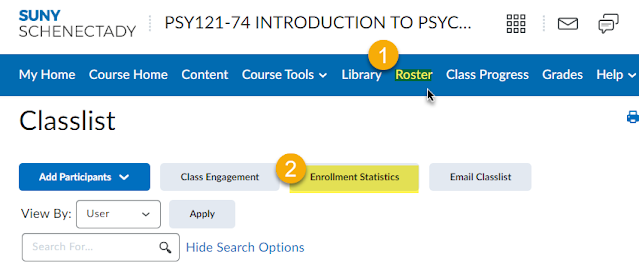
From inside your class, select the Roster option.Fortunately, at SUNY Schenectady, that is
right on the menu. (The Roster can also be found in the Course Admin under
Course Tools.)
Select the Enrollment Statistics button
Scroll down to the bottom and a list of
withdrawn students is displayed.
Click the chevron next to the student in
question to view their information.
Please note that you will need grade items for grades. Likewise, the attendance
is from the Brightspace Attendance feature. Your college may use a different
system for tracking.
These four easy steps will give you access to their grades
and information.
How often do you hear from a student that they cannot hand
in an assignment because their computer crashed and they lost the file? Have you ever asked if they backed up the
file? Now, have you ever asked that of yourself
and your course work?
Backing up your course material offers many benefits
including allowing you to:
Add material in another Course in Blackboard
Copy your course into another school’s version of Blackboard
Move the content and course into another Learning Management System, such as Desire 2 Learn (D2L)
It is also best practice to back-up your data – be it on
your personal computer or your courses in an LMS.
You can choose to “archive’ your course, but this will
include all the student information and posts.
If you only want to have a copy of the content of your course to save
and take with you, you will need to export it and save the “package”. To do this:
Select Packages and Utilities on the menu
Select Export/Archive Course
Select the Export Package grey button.
Under “Select Course Material” choose “Select
All”
Naturally, if you want to save only a portion, you can select what you want.
But be sure to choose the “Include only the forum, with no starter posts” option for discussions
Select “Submit” (you are almost done)
Wait…. The LMS is working.
After a couple minutes (you may have to refresh the screen), you will see your file as a link on the Export/Archive Course
page. This will be a zip file
Select the Zip file and download it. This is the
Course Package.
Save the Course Package, the Zip File, in a
location that you can find. You may want
to rename the Course Package to something meaningful for you to understand.
That is it!
Please note: DO NOT UNZIP the file.
Unzipping the file may corrupt your package. Leave it untouched until you need it. Then move the content to another course or
LMS, such as D2L.
When you are ready to move the course into an LMS, you will
just go into that course, use the Import Tool, and select this Course Package.
Follow these easy steps and you will be able to move your course, content and all, to most every modern Learning Management System (Yes, that includes D2L).