Showing posts with label LMS. Show all posts

Wednesday, May 13, 2026

Intelligent Agents in Brightspace


Intelligent agents in Brightspace are not really “intelligent” or GenAI.  Instead, they are rule-based automation tools that monitor learner activity and trigger targeted actions, such as: personalized feedback, or reminders. There are two key actions intelligent agents can do:

  1. Change user roles (permissions) and (un)enroll users (Administrator level access required)
  2. Instructors can email students alerts based on a triggered rule (Instructor level access)

Intelligent Agents as Instructional Agents

Intelligent agents can help put teaching plans into action automatically so they can immediately reach students, keep them engaged, reduce repetitive tasks, and use course data to guide your teaching in online or hybrid classes. This seems like a lot, but essentially in Brightspace they offer actions that can be automated by conditional statements.

Create and Employ an Agent

You can create an Intelligent Agent by:
  1. Going to Course Tools on the NavBar and selecting Course Admin
  2. Scroll Down to the Communication tools and select “Intelligent Agents” 
  3. Select “New Agent”
  4. The New Agent will have 4 features:
    1. General: The Basics
      1. Give the Agent a Name (Required)
      2. Give the Agent a Description
      3. Select a Category (Optional – you may need to make one using “Add Category”)
      4. DO NOT Select “Agent is enabled.  Only do this once the agent is ready to be deployed. You may want to test your agent first.
    2. Scheduling: Do you want this to be something done daily or once?
      1. NOTE:  Student patience is fragile. Be careful not to overdo it!
    3. Criteria: What triggers the action?
      1. Who is affected by their roles:
        1. It is best to choose all in the Classlist.
        2. Using specific roles requires care.  You could email other course instructors or librarians (folks with roles other than students).
      2. Take Action or Activity
        1. Select warnings for late log in activity by either:
          1. Brightspace Log-on
          2. Course log-in (this is best)
      3. Release Conditions: This is a vast list of options.  Some include:
        1. Not posting in a discussion section
        2. No Quiz Attempts
        3. Scoring Below or above a number on a Quiz
        4. Not visiting a content page
    4. Action: 
      1. Occur only once or (caution) repeatedly
      2. Send Email” select the box 
        1. Be sure to make the email informative.
        2. OPTIONAL: Replacement Strings can personalize your message.
  5. Save and Close
If you enabled the agent, it will run when scheduled. In addition, you can enable the agent from the list.

If you want to run it right now, select the agent’s chevron and select “Run now”.


What are Replacement Strings?

“Replacement strings” are bits of code entered into automated emails for personalization.

Use the following replacement string in the “To” address field to send the agent email to specific recipients: {InitiatingUser} – The user (student) who performs the actions necessary to satisfy the agent's criteria.
 

What replacement strings can I use in the subject and message? 

Here are several recommended replacement strings to consider using:

  • {InitiatingUserFirstName} - The first name of the initiating user.
  • {InitiatingUserLastName} - The last name of the initiating user.

  • {LastCourseAccessDate} - The date the initiating user last accessed the course.
  • {LastLoginDate} - The date the initiating user last logged in.

  • {OrgUnitStartDate} - The start date of the course. (Access to the Brightspace course)
  • {OrgUnitEndDate} -The end date of the course. (Access to the Brightspace course)

*Replacement strings are case sensitive!  Be sure to use them exactly as they are shown, else you could look like uncaring automaton or an idiot to the recipient. *

Example of a Message with Replacement Strings

The following text with replacement strings:

I see that you did not log into the you course, {OrgUnitName}, last week. I hope everything is okay.  If there is an issue, do not hesitate to contact me to see what we can do. Please remember that regular participation in course activities is essential for success in this course. You can get back on track by first logging in to the course as soon as possible.

Looking forward to your return to the course,

Professor Wolf

This will look like:

Dear John,

I see that you did not log into the you course, PSY222-73 DEVELOPMENTAL PSYCHOLOGY, last week. I hope everything is okay.  If there is an issue, do not hesitate to contact me to see what we can do. Please remember that regular participation in course activities is essential for success in this course. You can get back on track by first logging in to the course as soon as possible.

Looking forward to your return to the course,

               Professor Wolf

Strategically Employed Intelligent Agents are Powerful

Using Intelligent Agents in conjunction with Conditional Releases can create powerful rule-based tools that can engage students, provide immediate feedback, and otherwise help add a more personal touch to your class.

For example, Intelligent Agents can:
  • Send reminders to students who have not logged in recently,
  • Congratulate learners who perform well on assignments, or
  • Provide additional resources when students struggle with course material (via email link).

These automated messages help maintain communication, encourage engagement, and support student success without requiring instructors to manually monitor every course interaction.


Friday, May 1, 2026

Video Note in Brightspace


You know that short video increases student engagement, however you do not have the finances or time to purchase complex video creation software.  Getting a video production crew on a teacher’s salary is just not possible.  How can one take advantage of video in their online courses?

What if I told you that there is a tool that can easily create short video clips for your online course, embed the clips, and automatically generate closed captions?  Ensuring that the experience is accessible, the tool generates transcripts automatically.

How to use Video Note

Video Note can be accessed by using the “Insert Stuff” icon.

When selected you have to option to:

  • Record live using your web camera or
  • Upload a premade video.

Remember to keep the video short, or you will lose the attention of the viewers.

A widescreen, 1970s-style instructional graphic shows a retro-styled Brightspace editor interface with warm orange, brown, and beige tones. A popup labeled “Insert Stuff” is centered, listing options including “My Computer,” “Course Offering Files,” “Learning Repository,” and a highlighted “Add Video Note” with a cursor pointing to it. Two purple numbered circles indicate steps: “1” above the toolbar icon for “Insert Stuff,” and “2” beside “Add Video Note.” On the right, a rounded instruction box reads: “From the Brightspace editor: 1 Select ‘Insert Stuff’ 2 Select Add Video Note.” The entire design is framed with a layered, rounded border in retro colors, with ample spacing and a clean, balanced layout.

Remember to give the video:

  • a name,
  •  description,
  • select the video’s language and
  • select “Automatically generate captions from audio”.

Select next to review and insert (or re-record).  The video will be in embedding into the web page. Video Note will even keep your video in your course – so there is no commercial access or issues with social media!


There are so many uses! Video Note can be used in any editor in Brightspace and is excellent for giving feedback when grading.  Use it in the feedback section so students will then be able to easily click on the video with one click when viewing their grades – increasing their likeliness to review the feedback!


A horizontal 16:9 instructional infographic in a 1970s retro style with warm orange, brown, and yellow tones. The design features bold, groovy typography and decorative flowers and stripes. On the left, a panel explains two options for adding a Video Note: recording live with a webcam or uploading a premade video, with a reminder to keep videos short. In the center, a mock “Add Video Note” interface highlights labeled fields for Title, Description, Audio Language, and a checked box for “Automatically generate captions from audio,” with numbered callouts pointing to each field. On the right, a smiling man in vintage clothing points toward the interface. A bright starburst emphasizes the importance of enabling automatic captions. Along the bottom, instructions explain selecting “Next” to review and insert the video, which will be embedded in the webpage and securely stored within the course without commercial or social media concerns.

Other video editing tools and transcript tools can cost you thousands of dollars.  Video Note cost nothing – and can be paid in four small payments of $0.

I only want Audio

What if you do not want video, but only want audio, can you embed that with Video Note?  Yes.

Whatever your reason, be it being an international spy or that you just want to remain faceless, you can use Video Note to upload audio.  Simply select the audio only feature or upload the audio file, and Video Note can create an interactive player that proves captioning and transcripts.

Wednesday, November 22, 2023

Page Titles and Language Sets in Brightspace

The Problem

You have been working on ensuring your course has a perfect Ally Accessibility score and to your surprise you see a page that has an issue.  It reads:

  • 96%: This HTML file does not have a language set.

If you explore the issues, you may notice that the page is also missing a title.  Both are critical for accessibility.  To your dismay, Ally states, “Guidance is not available yet”.

Screen Shot of Edit HTML option
Figure 1

Guidance is Here

Luckily, we do not have to rely on Ally to solve this problem and you do not need to be an experienced HTML programmer either.  Any faculty can resolve this issue in the Brightspace editor.  You simply need to follow these steps:

  1. Select Edit HTML to the page in question to open the editor. (See Figure 1)
  2.  On the toolbar select the drop down from the Other Insert Options icon – it has a + sign on the button (See Figure 2)
  3.  Select the Attributes option.
  4. Select the “Page Attributes” Tab (See figure 3)
  5. Give the page a meaningful title (if it doesn’t already have one)
  6. Set the language set – “en’ for English (This is so much easier than adding <html lang="en"> to in the html code.)
  7. Select Create.
  8. Select the blue “Save and Close.”

That was it.  

Figure 2: Steps 2 and 3 in selecting other options

Figure 2

You didn’t have to open the source code and drop in the appropriate code ( <html lang="en"> for the English language set).  Instead, you can quickly fix any problematic pages with these issues and ensure your content passes WCAG accessibility standards. 

Figure 3 - Steps 4-7 how to add the title and language set

Figure 3

Now that you know this, you can have perfect pages.

Friday, April 21, 2023

How to check grades for withdrawal students

 On occasion you will teach a course and have a student withdraw from it.  This is not a big deal since there could be many reasons for this happening.  However, when the Dean needs you to report the students grades from work prior to the withdrawal, it then becomes a big deal.  How can you view their grades and participation when this happens?


Luckily, in Brightspace, viewing the grades from a student who has withdrawn from the class is no big deal.  

Steps 1 and 2

There are four simple steps:

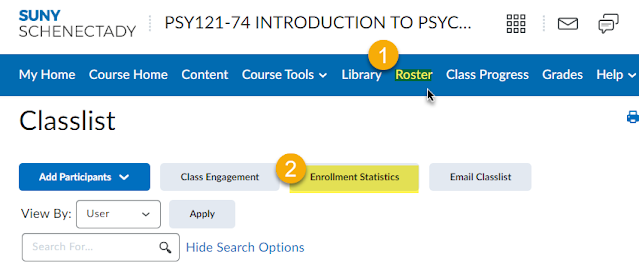
  1. From inside your class, select the Roster option.  Fortunately, at SUNY Schenectady, that is right on the menu. (The Roster can also be found in the Course Admin under Course Tools.)
  2.  Select the Enrollment Statistics button
  3. Scroll down to the bottom and a list of withdrawn students is displayed.
  4. Click the chevron next to the student in question to view their information.

Please note that you will need grade items for grades. Likewise, the attendance is from the Brightspace Attendance feature. Your college may use a different system for tracking.

These four easy steps will give you access to their grades and information.

Steps 3 and 4 illustratated


Monday, April 11, 2022

Exporting Your Course in Blackboard


How often do you hear from a student that they cannot hand in an assignment because their computer crashed and they lost the file?  Have you ever asked if they backed up the file?  Now, have you ever asked that of yourself and your course work?

Backing up your course material offers many benefits including allowing you to:

  • Add material in another Course in Blackboard
  • Copy your course into another school’s version of Blackboard
  • Move the content and course into another Learning Management System, such as Desire 2 Learn (D2L)

It is also best practice to back-up your data – be it on your personal computer or your courses in an LMS.

You can choose to “archive’ your course, but this will include all the student information and posts.  If you only want to have a copy of the content of your course to save and take with you, you will need to export it and save the “package”.  To do this:

  1. Select Packages and Utilities on the menu
  2. Select Export/Archive Course
  3. Select the Export Package grey button. 
  4. Under “Select Course Material” choose “Select All
    1. Naturally, if you want to save only a portion, you can select what you want.
    2. But be sure to choose the “Include only the forum, with no starter posts” option for discussions
  5. Select “Submit” (you are almost done)
  6. Wait…. The LMS is working.
  7. After a couple minutes (you may have to refresh the screen), you will see your file as a link on the Export/Archive Course page.  This will be a zip file
  8. Select the Zip file and download it. This is the Course Package.
  9. Save the Course Package, the Zip File, in a location that you can find.  You may want to rename the Course Package to something meaningful for you to understand.

That is it! 

Please note: DO NOT UNZIP the file.  Unzipping the file may corrupt your package.  Leave it untouched until you need it.  Then move the content to another course or LMS, such as D2L.

 
When you are ready to move the course into an LMS, you will just go into that course, use the Import Tool, and select this Course Package.


Follow these easy steps and you will be able to move your course, content and all, to most every modern Learning Management System (Yes, that includes D2L).

Monday, July 9, 2018

Helping Students Sign on to Blackboard

Often students, as well as faculty, are new to the online tools of a college and logging onto the learning management system (LMS) can be intimidating.  The latter a student enters the class often contributes to the student not having enough time to complete course assignments or even knowing about the assignments.  Needless to say, it is critical for student success to get the students familiar with the online learning environment quickly so that they can focus on learning.  Sharing the video below as well as the PDF (downloadable below too) either from an email attachment or course hand out during the first day of class procatively addresses this issue and should increase your student success rate.


How do we get started?

You want to use the My SCCC Portal. You can get there, and then to Blackboard, by performing the following:

  1. Go to the SCCC website (http://sunysccc.edu)
  2. Select (click on) the MySCCC button in the top right corner. (it is the orange one)
  3. Sign in using your email username and password to the SCCC Portal. If you do not know these, please contact the SCCC Help Desk at: (518) 381-1487
  4. Look to the left column and notice the “Launchpad”
  5. Scroll down and select (click on) the “BlackBoard” link
That is it. You are now in Blackboard. You should take a look at the institution page and notice your courses are on the top right corner as well as on the “courses” tab.

Now that you are in Blackboard, you can get started on completing your course work and getting your degree.

Below is a PDF you can download or print out to distribute to your students.

Thursday, March 15, 2018

Blackboard for Traditional Courses


Besides using Blackboard for what is required or the obvious uses such as an extensive gradebook function, there are several educational benefits to using and Learning Management System (LMS) when teaching a face-to-face course.

Overall benefits include:
  • Allowing students to have more opportunity to interact with the content
  • Developed presentations and tools foster more student engagement
  • Instructors have the ability to access more information about the students’ performance for years (useful for letters of recommendation)
  • Better communication tools – including pushing information to students’ phones
  • Increase self-directed learning
  • Students learn vital technical skills
  • It is easier to foster information literacy and introduce library services
  • Rich content is available that is not available in paper format
  • More affordable and a green alternative
  • Content is more accessible
  • Gives silent students a better chance to have a voice
  • Students have more time to reflect on discussions
  • Better testing tools to foster learning, such as instant feedback
  • Online grading tools
  • Anti-plagiarism tools
  • Foster better learning communities
  • Accommodates multiple modes of learning
  • Students learn to tutor other students

With these benefits, it is hard to understand why one wouldn’t want to augment their courses with an LMS to improve their learning environment.

Finding Your Courses


You are assigned your courses and you want to start early – good idea.  Now let’s look at your courses in Blackboard.

As you enter into blackboard, you will see the institution page with a login module.  We have single sign in, so the same username and password for your email and portal will work here. Once you have signed in, you will see your courses on the right module conspicuously named “My Courses”.

At first you may panic, as there may not seem any order or you will not see a listing of your current semester courses.   Remember, “Do Not Panic.”  This does not require Sherlock Holmes or any great deal of sleuthing.

The default on Blackboard is set to not display this information.  If you follow these simply steps, you can arrange your course listing to be easier search and you can tailor it to meet your needs.   While we will be working with this module on the institution page, you will be able to do this on the “Courses” page as well.

First, move the mouse over to the module called My Courses and you will see a gear or sprocket on the top right of the box.  This tool allow you to edit or personalize the settings of the module.  Click on it with the mouse.

Now simply select the “Group by Term” option and the courses will be presented to you by term.

If you scroll down you will see other options.  Feel free to select whichever selections you wish to see and sort by.

Remember to select the submit button.

Now you can view your courses by term, as well, as include many other features, such as Course ID.

If you have any questions, you can contact your Teaching and Learning Specialist to help.  Call me at 518-381-1408

Attendance Options in Blackboard


In Blackboard

If you are fortunate to have Starfish embedded in your courses (such as all courses at SUNY Schenectady), then you already have a great student retention tool that allows you to electronically record attendance.  Many academics are not so lucky, and this post is for you.

If you like working in Blackboard exclusively, you can opt to use the Full Grade Center to record attendance.  You can do this by either:

1. Creating an attendance column
  1. Label it attendance
  2. Set the points to 0 and the grading to text (a text string)
  3. Hit save
  4. Record all the attendance in one cell using a string of text such as a8/17- for absent August 17th.
2. Create a column for each day of attendance and a total column
  1. Record each day with present = 0 and absent = 1
  2. Create a total column that calculates the total number of days absent
Blackboard learn offers many features but as of 2016 does not offer a native attendance function for traditional face-to-face courses.  Until Blackboard offers this option we will simply have to make due with alternatives.

Luckily we have plenty of options. Included in the above playlist are the two options above plus another the embeds a google sheet for the faculty to use.

Grading in Blackboard Part 1


Grading in Blackboard is probably easier than you think. Often it is as easy as selecting a button stating “Grading Discussion Forum” or “Grading Assignment”. If you follow these simple steps you can grade or re-visit grades to edit or change them.

1. Make sure when editing the assignment (et al.) that you want graded, that you have the check box ensuring that it will be included in the Grade Center is selected.
2. Be sure there is a submission to be Graded
3. Either Grade it from the submission area or the Grade Center
       a. Within the area with the submission:
          i. Select the button on the dark row that states “Grade”
          ii. You will see a list of students and the ones with submissions will be indicated.
          iii. Select the Grade Box
          iv. Add comments and grade
          v. Submit

     b. Within the Grade Center you have several ways of viewing submissions that work and the Full Grade Center allow you to view and edit previously graded submissions. The Grade Center options include:
          • “Needs Grading”,
          • “Full Grade Center”
          • ‘Assignments”
          • “Tests”
     c. Select one of these.
     d. Find and select the column and specific assignment you wish to grade.
     e. Select the drop down editing arrow and select “View Grade Details”
          i. You can select “Attempts” to see attempts as well as grade or re-edit the grade.
          ii. You can enter a grade.

That is all there is to it.


Wednesday, March 14, 2018

Exporting Courses/Content


Many of you may have already taken your first workshop introducing your to blackboard and you are here to review how to save and export your course from Angel and how to Upload it into to Blackboard. If you haven’t had the training yet, you should not worry. The process is rather simple.
  1. In Angel, you will want to go to tools and back up the course 
  2. You will then choose to export the course and save the file 
  3. In Blackboard you will go to Package and Utilities and select “Import Package/View Logs” 
  4. Upload the file and submit 

The following playlist demonstrates the process and gives you tips. Please feel free to refer to it if you need a reminder.

Angel vs Blackboard

As we get ready to transition to Blackboard Learn from Angel it is important to remember that most learning management systems are similar and that the navigation will also be similar. In 2009 Blackboard bought Angel and adopted several of its features. While the behaviors are the same, there will be a few differences, such as a slight difference of terms.


Once we get past the slight hiccup in terminology, there you will be happy to learn that besides offering a comparable platform, Blackboard offers several benefits that Angel does not.  A few of these features include:

  • Groups: There are more options such as, groups can be set up so students have the option to self-enroll 
  • Safe Assign: There is an anti-plagiarism service that can be activated with assessments 
  • Hotspot Questions: There are more features for testing, including on using hot spots on images. 
  • Grade Center: More filters and tools gives you more control and a better understand of your students' performance. 
  • Peer and Student Assessments: A new feature that can benefit students by helping them understand the purpose of their work. It can also get them to reflect on their learning and the work of others.

Monday, May 2, 2016

ANGEL Help

This page offers tips for working in the ANGEL LMS. Like many online course management systems, interaction usually requires checking one's home page, announcements, reading content, and posting to discussion forums and assignements.
Below is a quickstart guide to Angel.  This should also help you. Click on it to veiw the ebook in full screen.  This will enable you to navigate to other areas in the book as well as download the ebook as a PDF file that can be printed and will work on most mobile devices).

UDL - Principle of Representation - Guideline 1 Perception

The first principle of UDL, ‘provide multiple means of representation”, help promote an inclusive learning environment on many levels.  Whe...